---
title: Orderline Schema
description: Raptor's Recommendation Engine is a powerful tool, but for it to work its magic, it needs data - and lots of it. Both historical purchase-data and piping-hot Point-Of-Sale data is useful for feeding
---
[Skip to content](https://content.raptorservices.com/help-center/tools/datamanager/orderline-schema#main-content)
![raptor-qntm-logo\_horizontal\_gradient.png\]](https://content.raptorservices.com/hs-fs/hubfs/raptor-qntm-logo_horizontal_gradient.png?height=40&name=raptor-qntm-logo_horizontal_gradient.png)
Open main navigation
Close main navigation
- [Go to raptorservices.com](https://raptorservices.com/)
[Go to raptorservices.com](https://raptorservices.com/)
Hello. How can we help you?
- There are no suggestions because the search field is empty.
1. [Help Center](https://content.raptorservices.com/help-center?hsLang=en)
2. [Data Management](https://content.raptorservices.com/help-center/data-management?hsLang=en)
3. [The Data Manager](https://content.raptorservices.com/help-center/data-management?hsLang=en#the-data-manager)
# Orderline Schema
### How to send Purchase History Data and **POS** Data to Recommendation Engine
Raptor's **Recommendation Engine** is a powerful tool, but for it to work its magic, it needs data - and lots of it. Both historical purchase-data and piping-hot Point-Of-Sale data is useful for feeding the algorithm, and the way to deliver this crucial fodder is the **Orderline Schema**. Using it, fortunately, is quite simple - a matter of two quick steps...
**🔍Note:** All data ingested through an Orderline Schema will be defined as **BATCH** data. This is crucial when ingesting data to the **Customer Data Platform**, where you can differentiate between **BATCH** and **STREAM** data. Stream data is tracking data from a website/app and **BATCH** data is fx POS data and historical purchase data. The type of data is shown as the parameter **SOURCE** in the **live tracking stream.**
### 1: Create Orderline Schema
Within the **Data Manager**, head to the **Schemas** tab, and click on the **Create new schema** button. Within the Schema Creation Tool, you will need to **Select destination platform** - which, in this case, needs to be **Recommendation Engine.** Making this selection opens up some new and different options when you **Select schema** - including **Orderline**. The **Schema name** is not too consequential, so you should simply name it something that's easy to remember, such as **POS** or simply **Orderline**.
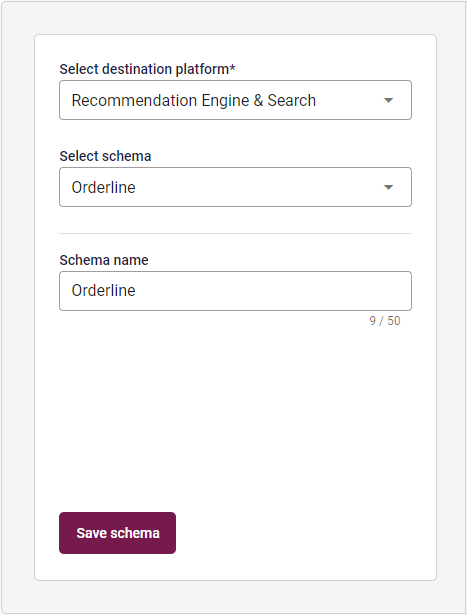
The **Orderline** Schema, unlike regular Schemas, cannot be edited or customized - it is designed for a uniform purpose, after all, and needs to be able to integrate smoothly with the Recommendation Engine. As such, there is nothing else to do but click on **Save schema** and finish the creation.
### 2: Create Dataflow
With your Orderline Schema in hand, head to the **Dataflows** tab, and click on **Create new dataflow.** Most of the process of setting up this specific dataflow is no different than any regular old Dataflow - so, if you aren't familiar with this system, it is recommended that you take a look at [Introduction to the Data Manager](https://content.raptorservices.com/support/tools/datamanager/introduction-to-the-data-manager?hsLang=en), which provides an in-dept guide to it. This guide will concern itself chiefly with the unique aspects of an Orderline Dataflow.
For example, in the **General information** step, it is important that you pick **Recommendation Engine & Search** in the **Select destination platform** drop-down. The rest is as usual, including the **Source**, which will likely depend on whether you're importing purchase history data or setting up a POS pipeline. The steps: **Download** and **File mapping** are also business-as-usual - for historical purchase data, you may want to download a HTTP document, while POS data is likely to arrive by FTP or similar, but there are many other supported options.
It is only at the crucial **Transform & Map** step that things become interesting again. Here, you will need to click on **Add existing schema**, and select the Orderline Schema you created in Step 1. Once you have added this Schema, you will be able to map the columns from your purchase data to the Schema Columns as usual, using the Combine, Transform and Convert tool - and you'll want to make sure ALL of the columns are mapped, in this case if at all possible, since any missing pieces will degrade the value of the data.
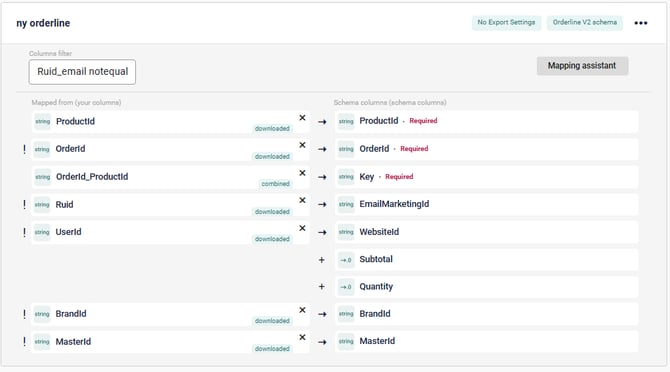
**Best practice** regarding validation on e-mail:
- 'convert' RuId to the datatype EMAIL
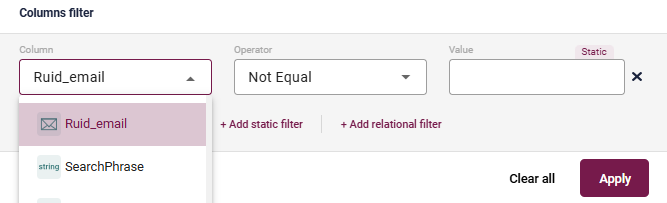
- add filter on datatype EMAIL - ' not equal' EMPTY
- Now the dataflow works with validation from EMAIL on RuId, while you can map a 'string' to EmailMarketingId and know that your filter takes care of the validation.
One unique requirement here, however, is the **Key** column. This needs to be mapped to a datapoint that is unique to each transaction. This feature serves the purpose of preventing the Recommendation Engine from being tricked by duplicate entries, which could otherwise lead to inaccurate results. If your dataset already contains a unique identifier for each purchase, excellent! Simply map that to the **Key** column, and you're golden.
If not, you'll have to create one using the **Combine** feature. Simply click on the **Combine Columns** button, and select two or more datapoints that, in combination, would be unique to a given purchase. For example, this could be an ItemID and a checkout timestamp - the source is ultimately irrelevant, so long as it's unique. Click past the **Transform** stage by selecting Skip Transformation, and arrive at the Combine-stage. You will now need to pick the order of the columns, but for the purposes of this particular exercise, this is actually irrelevant - the Key Generator is specifically set up to ensure that you can't accidentally create two 'unique' keys from the same datapoints by mixing up the order of the columns. So, just pick whatever order you like - it won't make a difference.
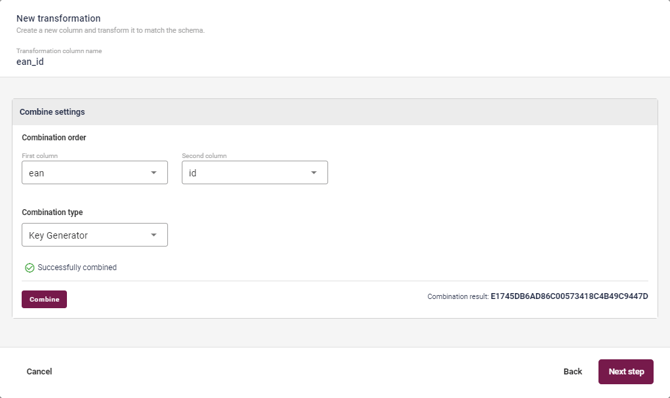
Finally, select the **Key Generator** Combination Type, and hit Combine before moving on to the final step. Here, you simply select **String** from among the various formats - right at the bottom of the drop-down -and hit **Convert**. You can now save your new Key as a **Custom Column**! Map the results to the **Key** column in the OrderLine Schema, and you're set.
Once you have mapped all the Required columns - and, preferably, all the rest too - you can proceed to the **Activate** step. This is mostly the same as ever, but the **Scheduler** is worth mentioning. If you're uploading a batch of historical purchase data, you'll want to use the **Run once** option, while a Point-Of-Sale data pipeline will need to be run regularly, be it once per day using the **Run daily at specific time** option, or more frequently using the **Run every** option. Assuming you did it all right, you'll then be able to **Test and activate** the Dataflow, and put to to work.
**🔍Note:** Whether a single load of historical purchase-records or a regular drip of POS Data, the Recommendation Engine will devour is all gratefully - and return the favor with better suggestions and sharper customer targeting...
- [Welcome to Raptor](https://content.raptorservices.com/help-center/welcome-to-raptor?hsLang=en#main-content)
- [Introduction](https://content.raptorservices.com/help-center/welcome-to-raptor?hsLang=en#introduction)
- [Analytics & Insights](https://content.raptorservices.com/help-center/analytics-insights?hsLang=en)
- [Data Management](https://content.raptorservices.com/help-center/data-management?hsLang=en#main-content)
- [Implementing Tracking](https://content.raptorservices.com/help-center/data-management?hsLang=en#implementing-tracking)
- [Implementing Raptor Recommendation](https://content.raptorservices.com/help-center/data-management?hsLang=en#implementing-raptor-recommendation)
- [Email Marketing Integration](https://content.raptorservices.com/help-center/data-management?hsLang=en#email-marketing-integration)
- [The Data Manager](https://content.raptorservices.com/help-center/data-management?hsLang=en#the-data-manager)
- [Streaming API](https://content.raptorservices.com/help-center/data-management?hsLang=en#streaming-api)
- [Destinations](https://content.raptorservices.com/help-center/data-management?hsLang=en#destinations)
- [Customer Data Platform](https://content.raptorservices.com/help-center/customer-data-platform?hsLang=en#main-content)
- [Introduction](https://content.raptorservices.com/help-center/customer-data-platform?hsLang=en#introduction)
- [Profile Unification](https://content.raptorservices.com/help-center/customer-data-platform?hsLang=en#profile-unification)
- [Audience Builder](https://content.raptorservices.com/help-center/customer-data-platform?hsLang=en#audience-builder)
- [Audience Insights](https://content.raptorservices.com/help-center/customer-data-platform?hsLang=en#audience-insights)
- [Calculated Attributes](https://content.raptorservices.com/help-center/customer-data-platform?hsLang=en#calculated-attributes)
- [Activations](https://content.raptorservices.com/help-center/customer-data-platform?hsLang=en#activations)
- [Single Customer View](https://content.raptorservices.com/help-center/customer-data-platform?hsLang=en#single-customer-view)
- [CDP Export API](https://content.raptorservices.com/help-center/customer-data-platform?hsLang=en#cdp-export-api)
- [Website Recommendations](https://content.raptorservices.com/help-center/website-recommendations?hsLang=en#main-content)
- [Introduction](https://content.raptorservices.com/help-center/website-recommendations?hsLang=en#introduction)
- [Recommendation Strategies](https://content.raptorservices.com/help-center/website-recommendations?hsLang=en#recommendation-strategies)
- [Feeds](https://content.raptorservices.com/help-center/website-recommendations?hsLang=en#feeds)
- [Tuning Parameters](https://content.raptorservices.com/help-center/website-recommendations?hsLang=en#tuning-parameters)
- [Working with the Raptor API](https://content.raptorservices.com/help-center/website-recommendations?hsLang=en#working-with-the-raptor-api)
- [Mail Recommendations](https://content.raptorservices.com/help-center/mail-recommendations?hsLang=en)
- [E-mail Triggers](https://content.raptorservices.com/help-center/e-mail-triggers?hsLang=en#main-content)
- [Get started](https://content.raptorservices.com/help-center/e-mail-triggers?hsLang=en#get-started)
- [E-mail Trigger Documentation](https://content.raptorservices.com/help-center/e-mail-triggers?hsLang=en#e-mail-trigger-documentation)
- [E-mail trigger integrations](https://content.raptorservices.com/help-center/e-mail-triggers?hsLang=en#e-mail-trigger-integrations)
- [Site Search](https://content.raptorservices.com/help-center/site-search?hsLang=en#main-content)
- [Search Tracking](https://content.raptorservices.com/help-center/site-search?hsLang=en#search-tracking)
- [Introduction](https://content.raptorservices.com/help-center/site-search?hsLang=en#introduction)
- [Implementing Site Search](https://content.raptorservices.com/help-center/site-search?hsLang=en#implementing-site-search)
- [Search Ranking & Recommendations](https://content.raptorservices.com/help-center/site-search?hsLang=en#search-ranking-recommendations)
- [Reporting](https://content.raptorservices.com/help-center/site-search?hsLang=en#reporting)
- [Merchandising](https://content.raptorservices.com/help-center/merchandising?hsLang=en#main-content)
- [Introduction to Merchandising](https://content.raptorservices.com/help-center/merchandising?hsLang=en#introduction-to-merchandising)
- [Boosted Campaigns](https://content.raptorservices.com/help-center/merchandising?hsLang=en#boosted-campaigns)
- [Customized Feeds](https://content.raptorservices.com/help-center/merchandising?hsLang=en#customized-feeds)
- [AI Models](https://content.raptorservices.com/help-center/ai-models?hsLang=en#main-content)
- [Customer Lifetime Value](https://content.raptorservices.com/help-center/ai-models?hsLang=en#customer-lifetime-value)
- [Administration](https://content.raptorservices.com/help-center/administration?hsLang=en#main-content)
- [Trust Center](https://content.raptorservices.com/help-center/administration?hsLang=en#trust-center)
- [User Management](https://content.raptorservices.com/help-center/administration?hsLang=en#user-management)
- [Operational Insights](https://content.raptorservices.com/help-center/administration?hsLang=en#operational-insights)
- [Data Retention](https://content.raptorservices.com/help-center/administration?hsLang=en#data-retention)
[](https://www.raptorservices.com/)
raptorsmartadvisor.com Help Center
Copyright © 2026, Raptor Services A/S