![raptor-qntm-logo_horizontal_gradient.png]](https://content.raptorservices.com/hs-fs/hubfs/raptor-qntm-logo_horizontal_gradient.png?height=40&name=raptor-qntm-logo_horizontal_gradient.png)
The Customer Lifetime Value (CLV) Model will give you predictive KPIs that allow you to create audiences with attributes like high future value, high risk of churning, high historic value and a lot more. It will help you dig deep into the behavior of your users and focus on the customers who are most valuable to your business. The CLV Model must be configured, validated and trained to learn from your data and the behavior of your customers. Once activated, you will find a number of attributes in the Audience Builder that can be used to define your audiences.
The CLV Model setup is available for customers with a Customer Data Platform, in the Raptor Control Panel, under the AI Models headline.
🔍 Note: The model will typically be most effective when utilized on your buy data, but it can be used on any of your data schemes e.g., visits, add to basket, downloads etc. In such cases, the Attributes listed below will have rather different meanings - for more details, see the Non-Monetary Calculations Guide.
Buy-events or Aggregated Orders?
For the purposes of creating a CLV, there is very little difference between using Buy-Event data and Aggregated Orders, and you can largely use whichever you have available. The only difference is that a few of the stats below may vary slightly, if some customers have made multiple orders on the same day.
List of Customer Lifetime Value attributes
As soon as the CLV model is activated, you will find the following attributes when you select the have-filter in the CDP's Audience Builder. Each attribute comes in two flavors:
Absolute value attributes give you the raw number for the customer — a monetary amount, a count of orders, a number of days, or a probability. Use these when you want to filter on a concrete threshold (for example, customers with a historic value above €500).
Percentile attributes rank each customer from 0 to 100 against the rest of your customer base on the same underlying metric. A value of 90 means the customer is in the top 10 %. Use these when you want to target a relative slice of your audience — for example, the 10 % of customers with the highest historic value all time — without having to know what the absolute cutoff is.
Absolute value attributes
- Repurchase probability: Repurchase probability represents the probability of the customer placing a new order at any time in the future. It is the opposite of churn, but churn can be calculated on the basis of repurchase probability with this formula: Churn = 100 - 'repurchase probability'.
Repurchase probability is a prediction by the AI model. It is based on the number of orders (Frequency), days since last order (Recency), days since first order (Time), the personal "average days between orders" for the customer and the dropout rate for the shop. The dropout rate is an internal value predicted by the model. It is shop specific and represents the ability to keep customers coming back.
For example: If a customer has a repurchase probability of 75 %, her churn risk is 25 %. - Churn risk: The inverse of repurchase probability and it tells you how likely it is that the customer will churn
- Historic value last 365 days: The sum of the value of all orders by the customer during the last 365 days
- Historic value all time: The sum of the value of all orders by the customer
- Predicted future value next 365 days: The predicted value of the customer the next 365 days. It is based on predicted number of orders in the next 365 days and average order value.
- Predicted Customer Lifetime Value: The sum of historic value and future value for the next 365 days for the customer.
- Predicted number of orders next 365 days: This is a prediction by the AI model and tells you how many times a customer will place an order within the next 365 days. It is based on the customer's buy frequency and the predicted alive score.
- Days since first order: Number of days since the first order by the customer.
- Days since last order: Also known as recency. Number of days since the last order by the customer.
- Number of orders: Also known as frequency. The number of orders a customer has placed. Multiple items bought on the same day are aggregated into one order.
- Average order value: Also known as monetary value. The average value of the basket. It is equal to the total historic value for the customer divided by the number of orders the customer has placed. Multiple items bought on the same day are aggregated into one order.
- Average days between orders: Is the number of days between the first and last order divided by the number purchases minus one.
For example: 3 orders in 100 days (first order on day 0, last order on day 100) equals 50 days between orders on average. - Inactivity score: Days since the customer placed her last order divided by the average days between orders for that customer. On the day a customer places an order, this score will be 0. Until the same customer buys again and has not reached her personal buying average, the inactivity score will be between 0 and 100. If she exceeds her personal buying average, the number will be more than 100.
For example: If a customer places an order every 10 days in average, but today it is 15 days since she placed her last order, the inactivity score will be 150.
Customers must have placed at least two orders to get an inactivity score.
Percentile attributes
Each percentile attribute is a 0–100 ranking of the customer against the rest of your customer base on the matching absolute attribute. 0 is the bottom of the distribution, 100 is the top. The label on each attribute tells you what "higher" means, so you don't have to remember whether a high raw number is good or bad for that metric — the recency, days-between-orders, inactivity and churn risk percentiles invert their source value so that higher always means better customer behavior.
- Repurchase probability, percentile: ranks each customer from 0 to 100 by how likely they are to place another order. A higher score means the customer is more likely to buy again — 100 is the most loyal, 0 the least.
- Historical value last 365 days, percentile: ranks each customer from 0 to 100 by how much they have spent in the past year. A higher score means the customer has spent more than most others — 100 is your top spender over the last 365 days.
- Historical value all time, percentile: ranks each customer from 0 to 100 by total lifetime spend with you. A higher score means the customer has spent more overall — 100 is your highest-spending customer to date.
- Predicted future value next 365 days, percentile: ranks each customer from 0 to 100 by how much the AI model expects them to spend over the coming year. A higher score means the customer is predicted to spend more than most others in the next 365 days.
- Predicted customer lifetime value, percentile: ranks each customer from 0 to 100 by predicted total value (past spend plus expected spend over the next year). A higher score means the customer is among your most valuable overall.
- Predicted number of orders next 365 days, percentile: ranks each customer from 0 to 100 by how many orders the AI model expects them to place in the coming year. A higher score means the customer is predicted to order more often than most others.
- Days since first order (customer age), percentile: ranks each customer from 0 to 100 by how long they have been a customer. A higher score means the customer has been with you longer — 100 is among your longest-standing customers, 0 is a brand-new one.
- Days since last order (recency), percentile: ranks each customer from 0 to 100 by how recently they last ordered. A higher score means the customer ordered more recently — so this percentile flips the raw metric, because a lower number of days since last order is the better outcome.
- Number of orders (order frequency), percentile: ranks each customer from 0 to 100 by how many orders they have placed in total. A higher score means the customer has ordered more times than most others.
- Average order value, percentile: ranks each customer from 0 to 100 by the average size of their basket. A higher score means the customer typically spends more per order than most others.
- Average days between orders (purchase frequency), percentile: ranks each customer from 0 to 100 by how often they buy. A higher score means the customer buys more frequently — so this percentile flips the raw metric, because a smaller gap between orders is the better outcome.
- Inactivity score (activity recency), percentile: ranks each customer from 0 to 100 by how active they are relative to their own buying rhythm. A higher score means the customer is well within — or ahead of — their normal buying cycle; this percentile flips the raw metric, because a lower inactivity score is the better outcome.
- Churn risk (retention), percentile: ranks each customer from 0 to 100 by how likely they are to stick around. A higher score means the customer is less likely to churn — so this percentile flips the raw metric, because a lower churn risk is the better outcome.
How to setup a Customer Lifetime Value Model
You will find the CLV Model setup from the menu under the headline AI Models. Go to the CLV model and click + Create new model to go to the setup page.
1. General Information
Give your model a name and description so it is easy for you to recognize it. The name (suffixed by 'CLV') will be displayed as a source in the Audience Builder and on a card on the overview page. 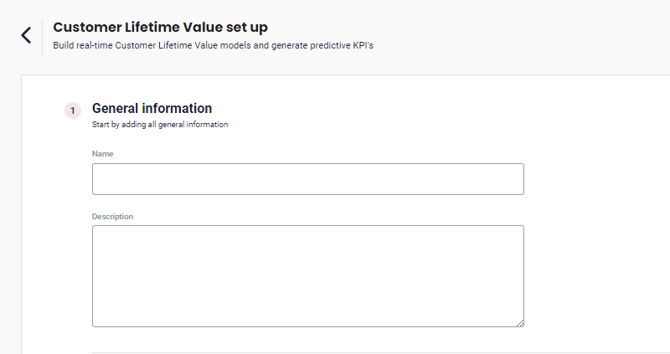
2. Select schema & map data
To create a data foundation for the calculations and predictions of the CLV model, you need to let the system know what data the model should be based on.
First, you must select a schema. Schemas come from the Data Manager and represent how your data is mapped into Raptor's system.
Click the '+ Create mapping'-button to open the mapping pop-up.
In step 1, you see a dropdown with a list of eligible schemas. Select the desired schema (most often, this will be a buy schema).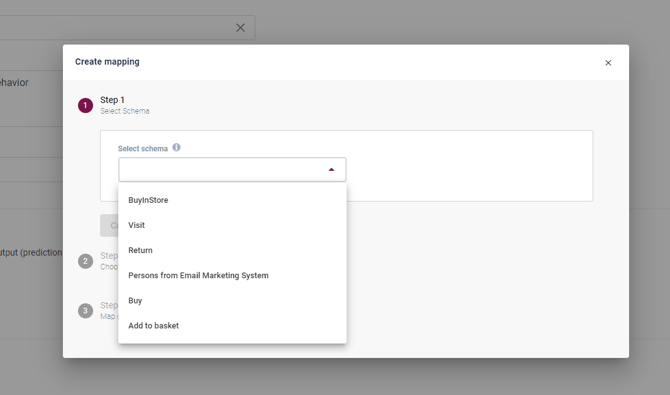
The CLV model is applicable for all types of schemas that have been created and populated via the Data Manager.
Click Continue.
In step 2, you need to map your data to a CLV model schema. You have three options for doing so: 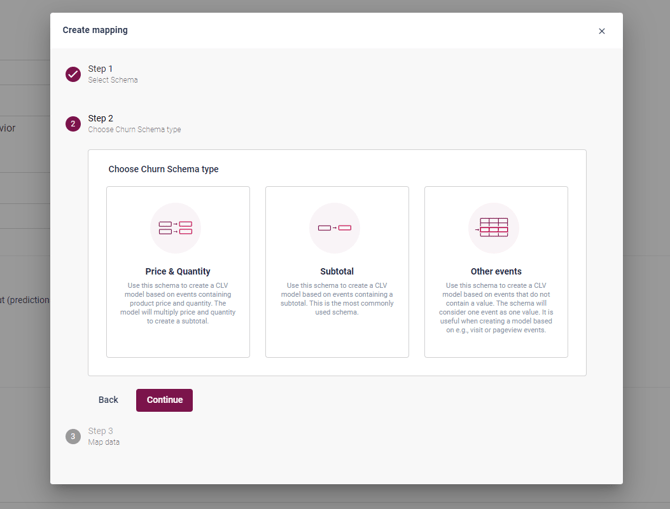
- Price & Quantity: Select this schema if your data contains both a value (most often this will be the price of a product) and a quantity (most often this will be the amount of the same product the customer bought e.g., five identical t-shirts or three packs of diapers)
- Subtotal: Select this schema if your data only contains a value (most often this will be a subtotal on your buy events)
- Other events: Select this schema if one row of your data equals one value e.g., a pageviews or visits
⚠️ Warning: Make sure the fields you map to 'Value' and 'Quantity' contain numeric data only. Mapping a non-numeric field - such as a cookie ID or identifier column - to the 'Quantity' field will cause the model to run without producing results. If your model shows 'no finished runs' after the scheduled time has passed, check that both mapped fields contain numeric values and edit the mapping if needed.
Select the suitable schema and click Continue, which takes you to Step 3: Map data
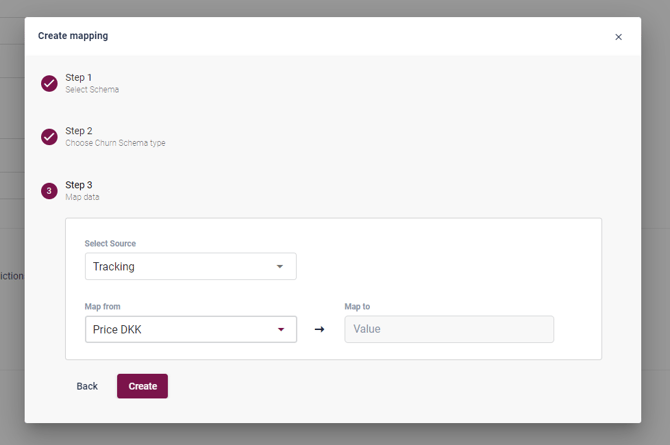
In step 3, you select the source of the fields you wish to map, and the field(s) that correspond to the fields of the CLV schema on the right (Value and/or Quantity).
Press 'Create' to save your selections and close the pop-up.
👀 Usecase: Combine CLV predictions from offline and online stores
You have the possibility to create multiple mappings in one CLV model. By clicking the '+ Create mapping'-button, you can add data from different sources to your model. If you operate both an online and a physical store, it is recommended to combine buy events from both stores. This way you can take customers who have low online activity but might buy frequently in your physical store into account and base for instance churn predictions on a full picture of customer engagement.
Here is how it looks when two mappings are combined: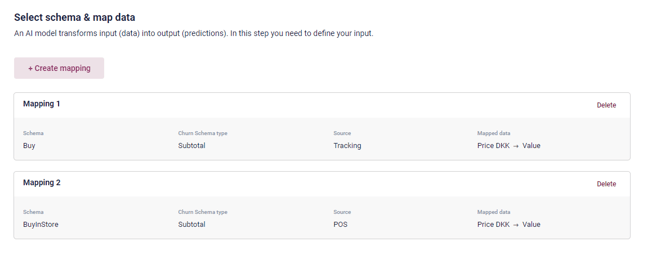
In this case, we recommend you to build three CLV models:
- A model based on your online buy data
- A model based on your offline buy data
- A model that combines online and offline buy data
This way you have the opportunity to build predictive audiences for both your online and offline stores, and for the people who buy from both.
🔍 Note: When combining two data sources, as in this case, the time period of the data should be approximately the same, and users should be recognizable within the CDP across the two sources.
3. Schedule
Set the time you wish to run the CLV model. When it runs it will include any new data ingested into the CDP and recalculate the KPIs for each of your profiles. It will run once a day, however, it is possible to run it manually regardless of the schedule (see under the headline "The overview page" below).
When is a good time to schedule your CLV model to run?
👀 Usecase 1: If you ingest POS data to the CDP once a day at 9 o'clock in the evening and your model include these data, you should schedule the CLV model to run after the POS data has been ingested, e.g. at 11 o'clock. That way your CLV model is calculated on the freshest possible data.
👀 Use case 2: If you use values created by the CLV model to determine which customers to send an e-mail to, you should time the update of the model close to the email send-out time to make sure that the message of the email applies to all recipients. Maybe you want to target customers with an inactivity score of 90 (meaning they are close to reaching their personal re-purchase average) and send an e-mail with recommended next items to purchase. If some customers actually purchase on the day of the e-mail send-out, and the CLV model is not updated accordingly, you could risk mistiming your communication. In this case, you should schedule the CLV model to run a couple of hours prior to your e-mail send-out time.
When done with the setup, you can click Save. This will perform an initial training-run of the model and validate its performance. You will automatically be directed to the overview page, where your newly established model should be visible with the status 'Running'.
The overview page
On the overview page, you get an overview of all your CLV models. Each of them is represented with a card containing a status, name, description, run schedule, time of last finished run and an indication of model precision.
A model can have the following statuses:
- Running: The model is calculating and is bringing new data into its predictions. It should only take a few minutes.
- Finished: The model is active and ready to use
Time of the last finished run will indicate when the model last finished calculating new CLV values taking new data into account. The time should be a few minutes after the run schedule.
Model evaluation and performance
Model precision is an important indication of your model's ability to provide you with precise predictions. Precision can be either high or medium. Behind this simple indication is a complex set of calculations that continuously validate the model's accuracy towards the actual data. As a general rule, the more data that is included in the dataset and thus available for the model to be trained on, the more precise results it will deliver. An example is the ability to predict buy frequency; the more times a customer has placed an order, the more precise the predicted average purchase frequency is.
A model with medium precision is not an obstacle for taking it into use. The cause of medium precision lies at the data set not being sufficiently large to ensure the desired accuracy in predictions. This will improve over time as new data is added to your CDP continuously, which will only make your model more precise every day.
⚠️ Warning: The CLV model requires a minimum of 120 days of data on the selected schema before it can produce an evaluation. If less data is available, the model will show No finished runs and "Model precision is invalid" on the model card. This is expected behaviour - the model will begin producing results automatically once the threshold is met. If the model card shows an Invalid events label, the schema or a dependency has been deleted and the model mapping needs to be updated.
By hovering the i-icon on the card you can see the result of the last three model trainings. The model is trained once a week during the weekend to evaluate its ability to predict actual customer behavior. By looking at the evaluations you will be able to follow when model precision shifts from medium to high or the other way around.
Manually train and predict
With the buttons "Train & Predict" and "Predict" available on the model cards, you can manually run a CLV model.
Train & Predict: Use this if you have just ingested a larger amount of data and you want as precise CLV scores as possible based on both the new data and the existing data. This will cause the model to train and adjust its settings according to the patterns found in the newly ingested data.
🔍 Note: This can take a couple of hours.
Predict: Use this if you want the model to include data ingested since the last time the model ran. It will use the settings from the last training, which will drastically reduce the run time.
🔍 Note: This can take a couple of minutes
FAQ
Q: My model shows no finished runs after setup. What should I check?
A: There are two likely causes. First, check that all mapped fields contain the correct data type - mapping a field with the wrong type (for example, an identifier column where a numeric value is expected) will silently prevent the model from producing output. Edit the mapping to correct this. Second, check that the selected schema has at least 120 days of historical data. If not, the model will not produce results until that threshold is met.
Q: My model card shows "Model precision is invalid". What does that mean?
A: The model does not yet have enough data to evaluate its own accuracy. This is expected if the schema has fewer than 120 days of historical data. No action is needed - precision will be evaluated automatically as more data accumulates.
Q: My model card shows an "Invalid events" label. What does that mean?
A: This means the schema or a dependency the model relies on has been deleted. The model can no longer run. To resolve this, edit the model and update the mapping to point to a valid schema, or recreate the missing dependency and re-save the model.
Q: Is there anything I need to be aware of if I delete a CLV model?
A: When you delete a CLV model, you should also delete or change audiences that are based on values from the model. Otherwise these audiences will be inaccurate.
Please contact Raptor if you have questions about the CLV model setup.