![raptor-qntm-logo_horizontal_gradient.png]](https://content.raptorservices.com/hs-fs/hubfs/raptor-qntm-logo_horizontal_gradient.png?height=40&name=raptor-qntm-logo_horizontal_gradient.png)
What is an end-to-end test?
Before you go live, test the whole journey on a staging or test environment: from tracking, through Raptor, to the products your visitors see on the page. This article walks you through the test and gives you a checklist for go-live.
Prerequisites
- Your modules are tested in the Control Panel and implemented on your website.
- Use Chrome with a clean session, with no old cookies. Use Safari only to test the ITP workaround.
How to follow a visitor journey
- Visit a few product pages while logged out.
- If your website has a login, log in. Check that the next tracking events include your UserId (p7).
- Add a product to the basket, and complete a test purchase.
- Click a product in at least one module on each page type. Check that an ItemClick event is sent.
- Log out.
In the Live Tracking Stream in the Control Panel (Data Management > Live Tracking Stream), check that every step shows up with the same CookieId, and that the UserId only appears while you're logged in. See Testing of Tracking Implementation for what to check per event.
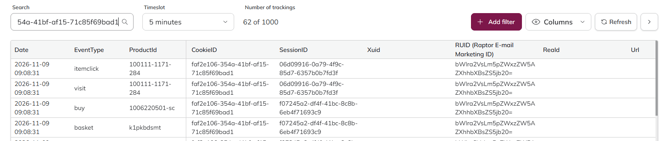
How to compare Raptor and your website
For each active module:
- Note the products shown on your website.
- Preview the same module in the Control Panel, with the same input (product, category or user).
- Check that the products and their order match.
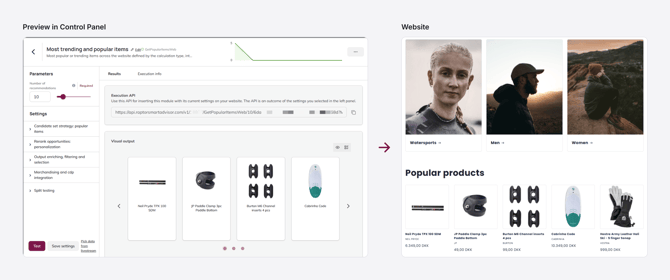
🔍 Note: If they don't match, check that you send the right parameters, and that your website isn't caching, filtering or re-sorting the response. See Calling the Raptor API.
Go-live checklist
- The product catalog is active and syncs on a schedule. See Setting up a Product Catalog for Recommendation Engine.
- Historical purchases are uploaded. See Orderline Schema.
- Tracking loads on every page after cookie consent.
- Visit, Basket, and Buy are verified, with no duplicate Buy events.
- Product IDs match across the product catalog, tracking and orders.
- Your website shows the same products as the Control Panel preview.
- ItemClick is sent once per click, with the right module name, on every active module.
- The page still loads if the API is slow, with a timeout and a fallback in place.
After go-live
- Follow the results in Analytics & Insights. See Introduction to Analytics & Insights.
- Keep an eye on errors in Operational Insights, and sign up for notifications, so you know when a new error occurs. See Introduction to Operational Insights.
Next step
When your modules are live, fine-tune them to fit your business. See Module adjustment and tuning.