---
title: "Tracking Enrichment: How to Enrich Website Trackings Using Your Product Catalog"
description: If you want to enrich the website trackings with additional information from your Product Catalog you need to follow this guide on how to use the feed mapping functionality. Viewing All Feed Mapping
---
[Skip to content](https://content.raptorservices.com/help-center/enrich-trackings#main-content)
![raptor-qntm-logo\_horizontal\_gradient.png\]](https://content.raptorservices.com/hs-fs/hubfs/raptor-qntm-logo_horizontal_gradient.png?height=40&name=raptor-qntm-logo_horizontal_gradient.png)
Open main navigation
Close main navigation
- [Go to raptorservices.com](https://raptorservices.com/)
[Go to raptorservices.com](https://raptorservices.com/)
Hello. How can we help you?
- There are no suggestions because the search field is empty.
1. [Help Center](https://content.raptorservices.com/help-center?hsLang=en)
2. [Data Management](https://content.raptorservices.com/help-center/data-management?hsLang=en)
3. [Implementing Raptor Recommendation](https://content.raptorservices.com/help-center/data-management?hsLang=en#implementing-raptor-recommendation)
# Tracking Enrichment: How to Enrich Website Trackings Using Your Product Catalog
Tracking Enrichment allows you to supplement your website tracking with additional metadata sourced directly from your Product Catalog. This is especially useful when the tracking setup cannot capture certain values reliably—such as **CategoryPath**, **Brand**, or structured attributes—but these values exist in your product feed.
Use this guide to understand how Tracking Enrichment works, how to configure it, and how to validate that your enrichment behaves as expected.
#### **When to Use Tracking Enrichment**
Tracking Enrichment is relevant when:
- Tracking data is missing attributes that already exist in your Product Catalog
- Your tracking implementation cannot reliably capture certain values (e.g., `CategoryPath` during buy-events)
- You need consistent, normalized product metadata across datasources
- You work with [**GetPIMRelatedItems**](https://content.raptorservices.com/help-center/product?hsLang=en) or other modules that depend on complete product context
**💡Example:** Buy-events often lack category information because categories may not be available in the frontend at the moment the event fires. Enriching buy-events with CategoryPath from the Product Catalog solves this issue without modifying your tracking script.
#### **Viewing All Existing Tracking Enrichments**
To see a full overview of all enrichments configured for your tracking setup:
1. Go to **Data Management**
2. Click **Implement Tracking** → **Go to admin**
3. Select **Tracking enrichment** from the top menu
This overview lets you quickly verify existing rules, avoid duplicates, and maintain a clean setup.
**⚠️ Note:** Currently, Tracking Enrichment is only available to Raptor users.
### **How Tracking Enrichment Works**
Tracking Enrichment supplements incoming tracking events with additional metadata from the Product Catalog.
It works through three main steps:
1. **Lookup:** The system uses a chosen lookup key (e.g., `ProductId`, `VariantId`, `SKU`) to match your tracking event with the corresponding product in the Product Catalog.
2. **Extraction:** It retrieves the required metadata from the Product Catalog using the selected FeedIdentifier (schema name).
3. **Enrichment:** It overwrites the value of the selected tracking parameter **only for the specific events defined in your condition expression**.
#### **Important Behavior to Understand**
- The enrichment **only impacts datasources** where the parameter is used
- The enrichment **overwrites** existing values (but only for events defined by your condition)
- You can verify the enrichment in the **Live Tracking Stream** (values typically appear within 60 minutes)
### Creating a Tracking Enrichment
Follow these steps to configure new enrichment rules:
1. In **Implement Tracking**, find the parameter you want to enrich
2. Click **Map tracking from feed to tracking**
3. Select the **FeedIdentifier** (schema name used in Data Manager)
4. The enrichment is automatically added under **Tracking enrichments**
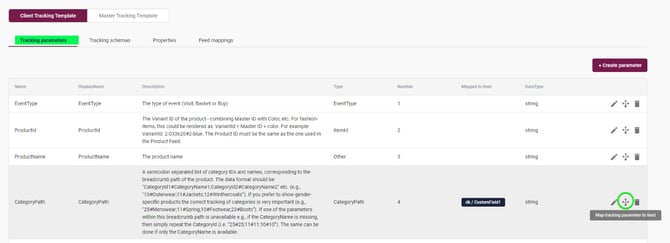
👀 **Use case:** Each Data Manager column can only be mapped to a single tracking parameter. Mapping the same column to two different parameters is not supported and will cause unexpected behavior.
If you need the same source field to populate two parameters, create two separate columns in Data Manager with the same source data, then map each column to its respective parameter.
**⚠️ Parameter Limit**
To ensure stable tracking, always use parameter names within the range **P1–P999**. When enriching tracking events with custom parameters, keep in mind that only parameters up to **P999** is supported. Any attempt to create or use parameters above this limit (for example **P1000**, **P1023**, etc.)—including via **Tracking Enrichment**—is not supported and will break tracking.
#### **Selecting the Lookup Key**
By default, `ProductId` is used as the match key — this works in nearly all cases.
If you need another lookup key:
1. Click **Edit** on the enrichment
2. Choose a different lookup key from the list
Read more about how to set up the Product Catalog for Recommendation Engine [here](https://content.raptorservices.com/help-center/tools/datamanager/product-catalog?hsLang=en).
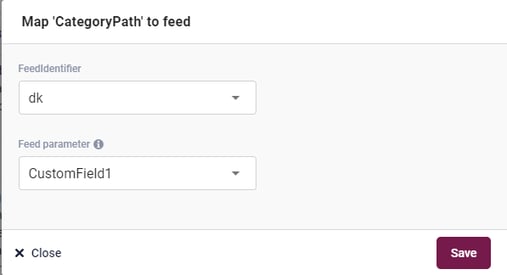
**🔍 Note:** The lookup key must exist *both* in your tracking events and in your Product Catalog. A mismatch will prevent enrichment from happening.
The mapping is automatically created under the headline "Tracking enrichments"

👀 **Use case:** if you don't want to use the ProductId as lookup in the feed (which is used in 99% of the cases) then the Tracking enrichment is not yet completed.
### Only relevant if you want another lookup than ProductId:
If you want to change the parameter that is used as lookup in the Product Catalog:
- Click "Edit"
- Select the needed lookup key from the list

### **Condition Expressions (Event Filters)**
Condition expressions define **which events** should be enriched.
#### **Examples**
- `EventType == "visit"`
→ Only enriches visit events
- `EventType == "buy"`
→ Only enriches buy events
- `EventType == "visit" && EventType == "buy"`
→ Enriches both visit and buy events
Use these expressions to target only relevant event types and prevent unintended overwrites.
### **Validating Your Enrichment**
Once the enrichment is created:
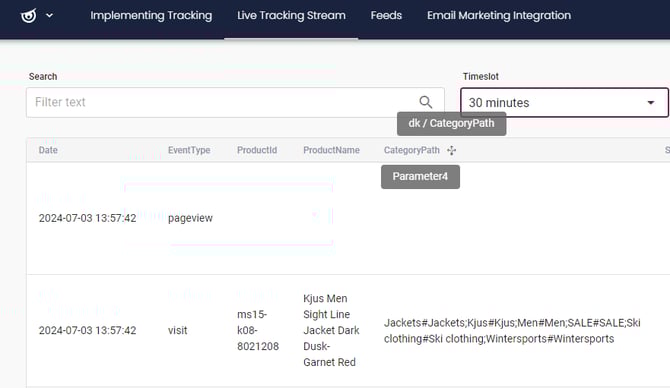
- Open **Live Tracking Stream**
- Locate the parameter you enriched
- Confirm that the enriched values differ from what the tracking script normally sends
- Remember that Live Tracking Stream refreshes about every **60 minutes**
This is the most reliable way to confirm that your enrichment is active and correct.
#### **Removing a Tracking Enrichment**
If an enrichment is created by mistake or no longer needed:
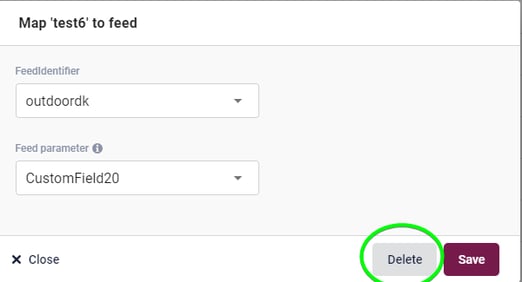
1\. Click the **enrichment icon** next to the rule
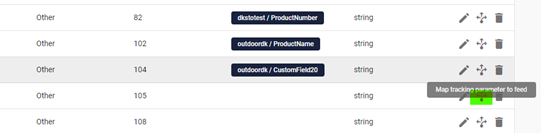
2\. Select **Delete**
This removes the enrichment without affecting the underlying parameter.
If you wrongfully create an enrichment and want to remove/delete it, then:
n
#### **Summary**
Tracking Enrichment is a powerful way to ensure high‑quality, complete, and consistent product metadata across your tracking setup. Whether you're filling gaps, normalizing data, or supporting modules like [GetPIMRelatedItems](https://content.raptorservices.com/help-center/product?hsLang=en), enrichment helps improve data reliability without requiring frontend development changes.
### 🗯️ FAQ
**Q: Do Tracking Enrichments apply to all datasources?**
**A:** No. An enrichment applies **only** to datasources where the enriched parameter is used. If a parameter (e.g., `p23`) exists in Datasource A but not in Datasource B, only Datasource A is affected.
**Q: Will the enrichment overwrite existing values?**
**A:** Yes — but only for the events defined in your condition expression.
If you see values in the column before enrichment should apply, they likely originate from other event types not covered by your rule.
**Q: How can I confirm the lookup is working correctly?**
**A:** Check the **Live Tracking Stream**. If the enriched value appears correctly and differs from what the frontend sends, the lookup is working.
**Q: Can I map the same Data Manager column to two different tracking parameters?**
**A:** No. Each column can only be mapped to one parameter. If you need the same data in two parameters, add two columns in Data Manager — both sourcing the same field — and map each one separately.
- [Welcome to Raptor](https://content.raptorservices.com/help-center/welcome-to-raptor?hsLang=en#main-content)
- [Introduction](https://content.raptorservices.com/help-center/welcome-to-raptor?hsLang=en#introduction)
- [Analytics & Insights](https://content.raptorservices.com/help-center/analytics-insights?hsLang=en)
- [Data Management](https://content.raptorservices.com/help-center/data-management?hsLang=en#main-content)
- [Implementing Tracking](https://content.raptorservices.com/help-center/data-management?hsLang=en#implementing-tracking)
- [Implementing Raptor Recommendation](https://content.raptorservices.com/help-center/data-management?hsLang=en#implementing-raptor-recommendation)
- [Email Marketing Integration](https://content.raptorservices.com/help-center/data-management?hsLang=en#email-marketing-integration)
- [The Data Manager](https://content.raptorservices.com/help-center/data-management?hsLang=en#the-data-manager)
- [Streaming API](https://content.raptorservices.com/help-center/data-management?hsLang=en#streaming-api)
- [Destinations](https://content.raptorservices.com/help-center/data-management?hsLang=en#destinations)
- [Customer Data Platform](https://content.raptorservices.com/help-center/customer-data-platform?hsLang=en#main-content)
- [Introduction](https://content.raptorservices.com/help-center/customer-data-platform?hsLang=en#introduction)
- [Profile Unification](https://content.raptorservices.com/help-center/customer-data-platform?hsLang=en#profile-unification)
- [Audience Builder](https://content.raptorservices.com/help-center/customer-data-platform?hsLang=en#audience-builder)
- [Audience Insights](https://content.raptorservices.com/help-center/customer-data-platform?hsLang=en#audience-insights)
- [Calculated Attributes](https://content.raptorservices.com/help-center/customer-data-platform?hsLang=en#calculated-attributes)
- [Activations](https://content.raptorservices.com/help-center/customer-data-platform?hsLang=en#activations)
- [Single Customer View](https://content.raptorservices.com/help-center/customer-data-platform?hsLang=en#single-customer-view)
- [CDP Export API](https://content.raptorservices.com/help-center/customer-data-platform?hsLang=en#cdp-export-api)
- [Website Recommendations](https://content.raptorservices.com/help-center/website-recommendations?hsLang=en#main-content)
- [Introduction](https://content.raptorservices.com/help-center/website-recommendations?hsLang=en#introduction)
- [Recommendation Strategies](https://content.raptorservices.com/help-center/website-recommendations?hsLang=en#recommendation-strategies)
- [Feeds](https://content.raptorservices.com/help-center/website-recommendations?hsLang=en#feeds)
- [Tuning Parameters](https://content.raptorservices.com/help-center/website-recommendations?hsLang=en#tuning-parameters)
- [Working with the Raptor API](https://content.raptorservices.com/help-center/website-recommendations?hsLang=en#working-with-the-raptor-api)
- [Mail Recommendations](https://content.raptorservices.com/help-center/mail-recommendations?hsLang=en)
- [E-mail Triggers](https://content.raptorservices.com/help-center/e-mail-triggers?hsLang=en#main-content)
- [Get started](https://content.raptorservices.com/help-center/e-mail-triggers?hsLang=en#get-started)
- [E-mail Trigger Documentation](https://content.raptorservices.com/help-center/e-mail-triggers?hsLang=en#e-mail-trigger-documentation)
- [E-mail trigger integrations](https://content.raptorservices.com/help-center/e-mail-triggers?hsLang=en#e-mail-trigger-integrations)
- [Site Search](https://content.raptorservices.com/help-center/site-search?hsLang=en#main-content)
- [Search Tracking](https://content.raptorservices.com/help-center/site-search?hsLang=en#search-tracking)
- [Introduction](https://content.raptorservices.com/help-center/site-search?hsLang=en#introduction)
- [Implementing Site Search](https://content.raptorservices.com/help-center/site-search?hsLang=en#implementing-site-search)
- [Search Ranking & Recommendations](https://content.raptorservices.com/help-center/site-search?hsLang=en#search-ranking-recommendations)
- [Reporting](https://content.raptorservices.com/help-center/site-search?hsLang=en#reporting)
- [Merchandising](https://content.raptorservices.com/help-center/merchandising?hsLang=en#main-content)
- [Introduction to Merchandising](https://content.raptorservices.com/help-center/merchandising?hsLang=en#introduction-to-merchandising)
- [Boosted Campaigns](https://content.raptorservices.com/help-center/merchandising?hsLang=en#boosted-campaigns)
- [Customized Feeds](https://content.raptorservices.com/help-center/merchandising?hsLang=en#customized-feeds)
- [AI Models](https://content.raptorservices.com/help-center/ai-models?hsLang=en#main-content)
- [Customer Lifetime Value](https://content.raptorservices.com/help-center/ai-models?hsLang=en#customer-lifetime-value)
- [Administration](https://content.raptorservices.com/help-center/administration?hsLang=en#main-content)
- [Trust Center](https://content.raptorservices.com/help-center/administration?hsLang=en#trust-center)
- [User Management](https://content.raptorservices.com/help-center/administration?hsLang=en#user-management)
- [Operational Insights](https://content.raptorservices.com/help-center/administration?hsLang=en#operational-insights)
- [Data Retention](https://content.raptorservices.com/help-center/administration?hsLang=en#data-retention)
[](https://www.raptorservices.com/)
raptorsmartadvisor.com Help Center
Copyright © 2026, Raptor Services A/S