![raptor-qntm-logo_horizontal_gradient.png]](https://content.raptorservices.com/hs-fs/hubfs/raptor-qntm-logo_horizontal_gradient.png?height=40&name=raptor-qntm-logo_horizontal_gradient.png)
REAID synchronization
Raptor needs to update all contacts within your HubSpot account with a REAID (Raptor Email Address ID). The REAID is an arbitrary ID created by Raptor's server and represents the user's email. When a user clicks on a newsletter, the REAID must be included in the URL sent, and subsequently, the same REAID should be set in the tracking for Raptor.
To establish communication between HubSpot and Raptor's Email Marketing System, you need to complete two steps:
- Create a private app in HubSpot and copy its access token.
- Enter the access token in the Raptor Control Panel.
🔍 Note: Keep this browser page open through the whole setup.
Creating a private app in HubSpot
- Log in to your HubSpot account.
🔍 Note: You must be signed in as an administrator, or have the App Marketplace permission.
- Click the Settings (gear) icon in the top navigation.
- In the left-hand menu, go to Integrations > Private Apps.
- Click Create a private app.
- On the Basic info tab, enter a name for the app, for example Raptor.
- Open the Scopes tab and enable the following scopes:
crm.schemas.custom.write
crm.objects.users.write
crm.schemas.quotes.write
crm.objects.users.read
crm.objects.projects.write
crm.schemas.projects.write
crm.objects.custom.write
crm.schemas.contacts.read
crm.schemas.services.write
e-commerce
crm.objects.products.write
crm.objects.carts.write
crm.schemas.commercepayments.write
crm.objects.custom.read
crm.schemas.companies.write
crm.schemas.carts.write
crm.schemas.custom.read
crm.schemas.orders.write
crm.schemas.deals.write
crm.objects.orders.write
tickets
crm.objects.contacts.write
crm.schemas.contacts.write
crm.lists.read
crm.pipelines.orders.write
crm.objects.contacts.read
- Click Create app in the upper-right corner and confirm the creation.
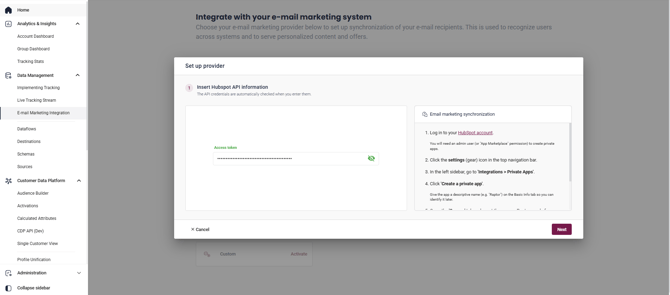
- Open the Auth tab, click Show token, and copy the Access token.
Connecting HubSpot to Raptor
- In the Raptor Control Panel, go to E-mail marketing integration.
- Select HubSpot from the list of available integrations.
- Paste the access token into the Access token field.
- Click Next.
You will have the option of expanding the integration to cover Sister Accounts as well. You can select as many as you like, or none at all and just click through. Keep in mind that each account can only have one Email Marketing Integration - if you attempt to include a Sister Account that already has a different integration in place, the activation will fail at the final step.
The final step before finishing will be a radio button labeled Enable Email Synchronization - on by default, this allows you to disable Raptor's proprietary REAID system. If you intend to use a different form of customer identification, you may want to disable this.
With these steps aside, your HubSpot Email Marketing Integration is now connected and beginning its first synchronization.
REAID synchronization
Once the integration has been configured, the first REAID synchronization starts within one hour.
To ensure all existing HubSpot contacts receive a REAID, Raptor performs additional synchronizations every four hours during the first 24 hours. After that, the synchronization runs once every 24 hours.
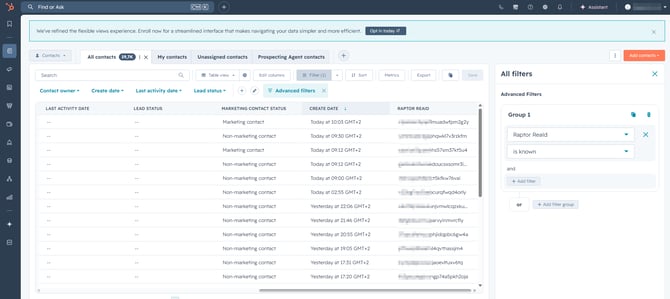
When a contact is synchronized, Raptor automatically creates a contact property named RAPTOR REAID in HubSpot and populates it with the contact's unique REAID.
You can verify that the synchronization has completed by opening a contact in HubSpot and checking that the RAPTOR REAID property has been populated.
Adding the REAID placeholder to your email links
To enable visitor recognition, add the following placeholder to all links in your HubSpot emails that point to your website:

💡 Example: A full link with the placeholder added would look like this:

Testing the integration
To verify that everything is working correctly:
- Create an email containing a link with the REAID placeholder.
- Send the email to yourself or a small test audience.
- Open the email and click the link.
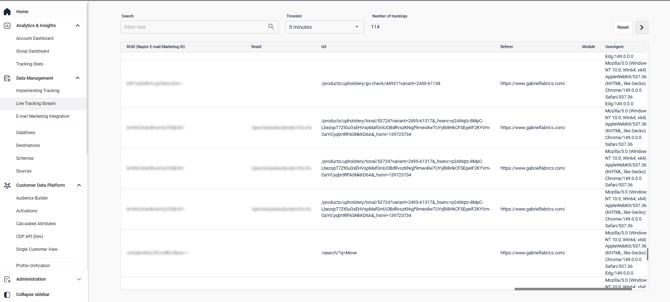
- In the Raptor Live Tracking stream, locate your visit.
If the integration is configured correctly, you will see a page view or visit event that contains your personal REAID in the tracking parameters.
With these steps aside, your HubSpot Email Marketing Integration should be set up, and beginning its first sync.