![raptor-qntm-logo_horizontal_gradient.png]](https://content.raptorservices.com/hs-fs/hubfs/raptor-qntm-logo_horizontal_gradient.png?height=40&name=raptor-qntm-logo_horizontal_gradient.png)
This article will help you understand:
- What Raptor Email Triggers are and how they work
- How the Trigger Funnel maps user intent to trigger types
- What makes Raptor's trigger setup unique
- Tips and best practices for building a high-performing trigger setup
🔍 Note: Raptor is not an email marketing system and does not send emails directly. Instead, Raptor integrates with your chosen email marketing provider, allowing you to combine Raptor's behavioral data and product intelligence with the features of your email marketing tool.
See all email marketing systems Raptor works with here: Raptor integrations
What are Raptor Email Triggers?
Raptor Email Triggers are automated email flows that activate based on a user's behavior on your website. Rather than sending the same message to everyone, triggers respond to what individual users actually do — which products they visit, what they add to their basket or favorites list, and when a product they have shown interest in changes in a way that is relevant to them.
Because triggers are based on Raptor's tracking, they can reach users at the right moment with content that is personal and contextually relevant — without requiring any manual campaign work.
The Trigger Funnel
Raptor's triggers are organized around a single principle: the deeper a user is in the purchase funnel, the closer they are to converting.
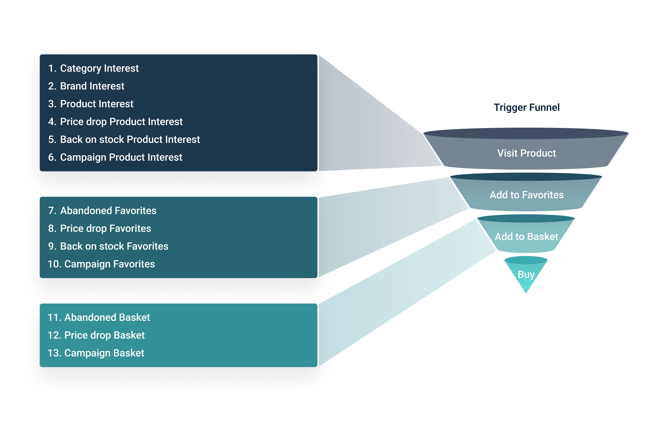
The funnel has four layers, each representing a type of user intent that Raptor can track and act on:
Visit Product The user has visited a product page one or more times. This is the widest layer — high in volume, but earlier in the purchase journey. Triggers at this level cast the widest net and are best suited for re-engaging users who have shown interest but have not yet committed.
Add to Favorites The user has saved a product to their favorites list. This signals stronger intent than a visit alone — the user wants to remember this product for later.
Add to Basket The user has added a product to their basket. This is a strong purchase signal. Triggers at this level typically have higher conversion rates than interest-based triggers, because the user was close to buying.
Buy The user has completed a purchase. This layer is used for disqualification — ensuring users do not receive trigger emails for products they have already bought.
The three trigger families
The triggers are grouped into three families based on which funnel layer they act on:
| Family | Funnel layer | Triggers |
|---|---|---|
| Product Interest | Visit Product | Category Interest, Brand Interest, Product Interest, Price Drop Product Interest, Back on Stock Product Interest, Campaign Product Interest |
| Favorites | Add to Favorites | Abandoned Favorites, Price Drop Favorites, Back on Stock Favorites, Campaign Favorites |
| Basket | Add to Basket | Abandoned Basket, Price Drop Basket, Campaign Basket |
Interest triggers (Visit Product) have the highest volume — they reach the broadest audience. Favorites and Basket triggers have the highest conversion rates — they reach users who were already close to buying.
👀 Use case: A strong trigger setup typically combines triggers from more than one family, using execution order and trigger grouping to ensure each user receives the most relevant communication at any given time.
What makes Raptor's trigger setup unique
Behavioral tracking across the full session
Raptor's tracking captures user behavior from the very start of a session — including visits, searches, favorites, basket activity, and purchases. This means triggers can be based on a rich picture of user intent, not just a single event.
The tracking also works across devices via cookie ID, so a user who browses on mobile and adds to basket on desktop can still be identified and reached.
The Data Manager
The Data Manager allows you to connect and manage the product catalogs that power your triggers. Filters can be configured to exclude specific products from trigger communications — for example, products below a minimum price threshold, products from a specific category, or products with a low contribution margin.
This makes it possible to tailor your trigger setup precisely to your business rules without any code changes.
Data enrichment
When a trigger activates, Raptor enriches the trigger event with data from both the tracking and your product catalog. This data can be passed directly to your email marketing tool and used to personalise your emails — for example:
- Including the specific product name, image, or price
- Displaying the user's basket contents exactly as they left it
- Showing personalised product recommendations based on the user's visit history
This is what enables a truly personal email experience — not just knowing that a user abandoned their basket, but being able to show them exactly what they left behind, along with recommendations tailored to their browsing history.
Combining Email Triggers with Email Recommendations
The most powerful trigger setups combine Raptor's trigger events with Raptor's Email Recommendation modules. When a trigger activates, the email can include not only the products the user interacted with, but also a personalized recommendation block — for example, similar products, trending items in the same category, or products that other users with similar behavior have bought.
This combination turns a standard re-engagement email into a fully personalized shopping experience.
Tips and best practices
Building a high-performing trigger setup takes time and iteration. The tips below are intended to give you a starting point — but the most important principle is to test, measure, and adjust. What works for one business may not work for another.
General best practices (apply to all triggers)
Set a sending limit. Always configure a maximum number of emails per user within a defined time window. Without a limit, a single user could qualify for multiple triggers simultaneously and receive too many emails in a short period. A limit of one trigger email per 24 hours is a common starting point.
Test on mobile. The majority of email traffic comes from mobile devices. Always review your trigger email templates on a mobile screen before going live.
Use execution order and trigger grouping. When you have multiple triggers active, configure execution order to prioritize the highest-converting triggers (for example, basket triggers over interest triggers). Use trigger grouping to ensure that qualifying for one trigger disqualifies the user from receiving another within the same period.
Trigger overview
For a full list of all triggers and links to their individual articles, see: Email Trigger Documentation
For guidance on how timing works across price drop and back on stock triggers, see: Understanding Trigger Timing: History Period and Latency Period