![raptor-qntm-logo_horizontal_gradient.png]](https://content.raptorservices.com/hs-fs/hubfs/raptor-qntm-logo_horizontal_gradient.png?height=40&name=raptor-qntm-logo_horizontal_gradient.png)
What is Power User Assistant ?
Power User Assistant is a keyboard-triggered command bar that lets you jump directly to any entity in the Raptor platform: Dataflows, Schemas, Audience Builder, and Recommendations, without navigating through menus. Open it with a keyboard shortcut, type a few characters, and go directly where you need to be. Power User Assistant is designed for users who move between multiple configurations, features and screens throughout their day.
🔍 Note: The Power User Assistant is designed to operate on account level. If you operate between multiple Control Panel accounts, you will be able to build your list of favorites and see recently visited entities on individual account level.
Key concepts
Recents: The entities you have visited most recently in the platform. Power User Assistant surfaces these by default when you open the command bar, so your most common destinations are always one keystroke away.
Favourites: Entities you have starred for quick access. Favourites appear at the top of Power User Assistant results and persist across sessions.
Entities: Any named object in the Raptor platform that you can navigate to directly: Dataflows, Schemas, Audience Builder, and Recommendations.
How to open Power User Assistant
- Press Cmd+K (Mac) or Ctrl+K (Windows/Linux) from anywhere in the platform. The Power User Assistant bar opens. Your most recently visited entities are listed by default.
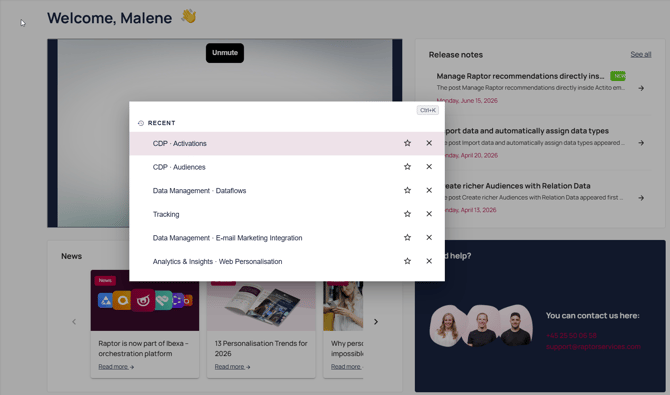
- Use the arrow keys to move through the results, then press Enter to navigate to the selected entity. Alternatively, click any result directly.
How to save and manage favourites
- Open Power User Assistant with Cmd+K / Ctrl+K.
- Locate the entity you want to save. You can scroll the default list or type to search.
- Click the star icon to the right of the entity name to add it to your favourites.
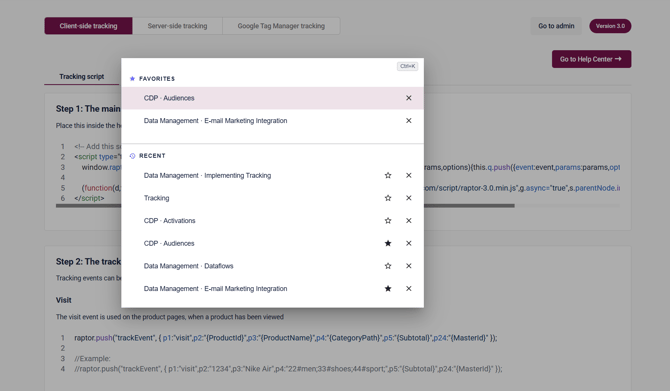
The star fills to confirm the entity has been saved. Favourited entities appear at the top of your Power User Assistant results on all future sessions. - To remove a favourite, open Power User Assistant and click the filled star icon next to the entity. The star empties and the entity returns to the standard results list.
🔍 Note: Favourites are saved to your user account. They are not shared with other users on the same account.