![raptor-qntm-logo_horizontal_gradient.png]](https://content.raptorservices.com/hs-fs/hubfs/raptor-qntm-logo_horizontal_gradient.png?height=40&name=raptor-qntm-logo_horizontal_gradient.png)
Purpose of Testing
The goal of testing is to ensure that a site sends correct, complete, and consistent tracking data to Raptor before going live. Relevant for Recommendations, E-mail Triggers & Site Search.
Tracking implementation quality directly influences:
- Recommendation relevance
- Personalization accuracy
- Audience segmentation precision
- Email event generation
- Reporting correctness
Testing must confirm:
✔ All required events fire
Visit, Basket, Buy, Favorite, ContentVisit, Search, SearchClick, SearchResult, ItemClick.
✔ Events contain the correct parameters
ProductId, quantity, listType, position, orderId, contentId, search query, etc.
✔ Soft IDs and Hard IDs behave correctly
- CookieId
- SessionId
- UserId
- RuId
- ReaID
✔ Data is stable and consistent
- No duplicated Buy events
- No changing CookieId
- No missing productIds or malformed JSON
- No unexpected ID combinations
✔ Tracking reflects actual user behavior
Events must be triggered exactly at the correct moment and never automatically or unintentionally.
Preparation
Before testing, set up these foundations.
Use a clean browser session
- Use Chrome whenever possible.
- Clear cookies prior to testing.
- Avoid Safari unless testing for ITP-specific behavior.
Enable cookies and storage
Tracking requires:
- First-party cookies enabled
- Local storage enabled
- No private/incognito mode (unless testing behavior under restricted conditions)
💡 Accept the cookie consent banner on the site before testing. Tracking will not fire until consent is given.
Know how to find the CookieId
Method 1: Visit a Rarely‑Viewed Product Repeatedly
This method ensures that your activity stands out clearly in the Live Stream.
Steps
- Identify a product page that normally has very few visits.
- Open the page.
- Refresh it several times — e.g. 5–10 times.
- Go to Live Stream in Raptor.
- Filter or visually scan for the product URL you’ve been refreshing.
- Once you find your events, open one of them and note the
cookieId.

Why this works
- Your repeated behavior creates a clear pattern.
- Events cluster together, making them easy to spot.
- Ideal for non‑technical testers.
Method 2: Inspect the Website → Application → Cookies → Search for “rsa”
This is the fastest and most direct way if you are comfortable with browser developer tools.
Steps
- Open the website.
- Right‑click → Inspect to open DevTools.
- Go to the Application tab.
- In the left sidebar, select Cookies for the current domain.
- Use the search field and look for “rsa”. (Cliient-side tracking)
- Find the cookie storing the Raptor tracking data (usually contains the CookieId).
- Copy the CookieId and paste it into the Live Stream filter if needed.
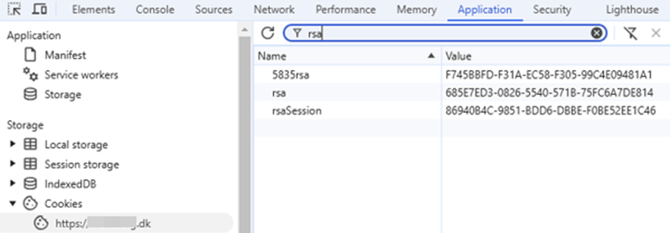
🔍 Note: If the tracking is implemented Server-side, it is the customer who defines the name of the cookie.
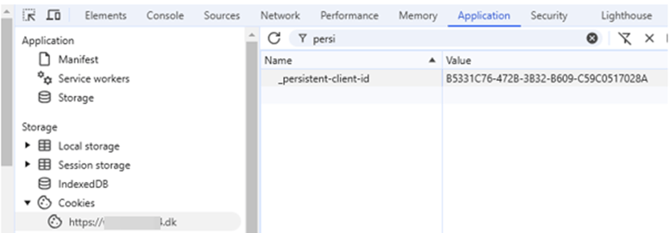
Why this works
- The CookieId is stored client‑side.
- Browsers store cookies per domain, so it’s always accessible here.
- Ideal for developers or technical QA.
Have Raptor Live Stream open
You will use it throughout the process.
Path: Live Stream → Filter by CookieId
You should see events appear within a few seconds.
⚠️ If no events appear, test if tracking is blocked by script loaders, AdBlock, or inconsistent environment configuration.
Ensure you have permission to perform a test purchase
Buy events must not be tested on production checkout flows without explicit agreement.
Testing All Event Types
Each event type has:
- Purpose
- When it should fire
- What parameters it must include
- What to validate in Live Stream
- Common mistakes
Let’s go through them in detail.
Visit
Purpose: Record the user’s page views and behavior.
When it fires: On every page load (unless explicitly throttled).
Required parameters:
| Parameter | Description |
|---|---|
cookieId |
Soft ID, persistent |
sessionId |
Current session |
url |
Full URL |
referrer |
Referring URL |
timestamp |
Event timestamp |
What to verify:
✔ Visit fires on every page
✔ cookieId and sessionId present
✔ cookieId does not change when navigating
✔ sessionId stays stable while tab is open
✔ url and referrer correct
✔ No duplicate Visit events per page load
Common mistakes:
- Missing referrer
- Event firing twice (SPA with double mount)
- Event firing before URL is updated in SPA routers
Basket
Purpose: Track add/remove actions and cart state.
When it fires:
-
Add to cart
-
Remove from cart
-
Quantity changes
Required parameters:
| Parameter | Description |
|---|---|
productId |
The correct product identifier |
quantity |
Number added/removed |
price |
Unit price |
listType |
(Optional) Origin list |
Validation in Live Stream:
✔ productId matches catalog
✔ quantity correct
✔ Price correct
✔ Fires only when user triggers an action
✔ Only one event per action
Common mistakes:
- Wrong productId (UI ID instead of backend ID)
- Price formatted incorrectly (comma instead of dot)
- Event firing multiple times due to button re-renders
- Using
listTypeincorrectly
Buy
Purpose: Register a successful purchase.
When it fires: Once, immediately after transaction confirmation.
Required parameters:
| Parameter | Description |
|---|---|
orderId |
Must be unique |
products |
Array with productId, price, quantity |
total |
Order total |
UserId |
Required if the user was logged in |
RuId |
Included when available |
Validation in Live Stream:
✔ Only one Buy event per order
✔ All products included
✔ Quantities correct
✔ Prices correct
✔ orderId unique
✔ UserId / RuId present if user logged in
⚠️ Critical warnings:
-
Never fire Buy on page load.
-
Ensure Buy client-side and server-side do not duplicate.
-
Use full decimal format for prices.
Favorite
Purpose: Track wishlist additions/removals.
When it fires: User favorites or unfavorites a product.
Required parameters:
productIdstate(add/remove)
Validate:
✔ Correct productId
✔ Correct state
✔ Event fires only on user action
ContentVisit
Purpose: Track non-product page content: articles, guides, categories, brand pages.
Required parameters:
-
contentId -
contentType
Validate:
✔ Correct contentId
✔ Category pages use consistent naming
✔ No duplicates
Search
Purpose: Capture search queries.
Required parameters:
-
query -
resultCount
Validate:
✔ Query is exactly what user typed
✔ resultCount matches UI
✔ Fires only when submitting, not on typing
SearchResult
Purpose: Record search result impressions.
Required parameters:
-
Array of results with
productId,position
Validate:
✔ ProductIds correct
✔ Positions sequential (1, 2, 3…)
✔ Matches SearchClick positions
SearchClick
Purpose: Record clicks on search results.
Required parameters:
-
productId -
position
Validate:
✔ position matches SearchResult
✔ Fires at click event only
ItemClick
Purpose: Track product clicks in recommendation modules and carousels.
Required parameters:
-
productId -
listType -
position
Validate:
✔ Correct productId
✔ listType consistent across modules
✔ Correct position
✔ No duplicate events
Testing User Tracking (Soft ID + Hard ID)
User tracking controls personalization.
This must be tested deeply.
Soft ID: CookieId
Expected behavior:
✔ Created on first page load
✔ Persistent
✔ Stays the same for all events
✔ Only changes if user clears cookies or expires
Test:
- Reload pages
- Navigate site
- Open new tab
CookieId should stay the same.
SessionId
Expected behavior:
✔ Changes when session ends
✔ Should NOT change inside a single browsing session
Test:
- Open page
- Click around → stable
- Close browser → reopen → new sessionId
Hard IDs: UserId, RuId, ReaID
4.3.1 UserId
Set when user logs in.
Validate:
✔ Appears instantly after login
✔ Stays consistent across events
✔ Disappears on logout
RuId
Can be:
- Email (most common)
- External ESP ID
- CRM ID
Validate:
✔ Correct value
✔ Not exposed before login unless intended
✔ Included in Buy event if user logged in
ReaID
Used for email tracking.
Validate:
✔ ReaID appears on visit after coming from email link
✔ Does not appear otherwise
✔ Correctly associated with CookieId and UserId
Test the User Identification Journey
Perform this full flow:
- Visit site logged out → soft IDs only
- Log in → UserId + RuId appear
- Add to basket → hard IDs included
- Buy → hard IDs included
- Logout → revert to soft IDs
Test All Three User Identification Scenarios
Scenario 1: UserId + RuId = email
Most implementations.
Validate:
✔ Email only appears after login
✔ Stays stable through session
✔ Buy event includes it
Scenario 2: UserId + External ESP ID
Validate:
✔ ESP ID consistent
✔ No mixing with email
Scenario 3: Global ID
Validate:
✔ Global ID persistent across devices
✔ Correct linking between CookieId and Global ID
Special Notes & Edge Cases
Pageview = Visit
Partners sometimes expect both. Clarify only Visit is used.
SPA frameworks
Common issues:
- Event fires before route updates
- Double-mounting fires duplicates
- Cached components re-fire events
Safari ITP
Cookie lifetime reduced dramatically.
Validate with:
- Chrome → baseline behavior
- Safari → understand constraints
Server-side safety
Buy events MUST NOT fire:
- On page load
- On refresh
- On order confirmation page reload
Final Testing Checklist (Extended)
Events
- Visit
- Basket (add/remove)
- Buy (one only)
- Favorite
- ContentVisit
- Search
- SearchResult
- SearchClick
- ItemClick
Data correctness
- ProductIds match catalog
- Prices, quantities correct
- listType correct
- No duplicate events
User tracking
- CookieId stable
- SessionId correct
- UserId on login
- RuId present
- ReaID sync works
Scenarios
- UserId + email
- UserId + external ID
- Global ID
Technical health
- No console errors
- No tracking blocked
- SPA routing handled
- Server-side events not duplicated