---
title: Getting started with your E-mail Personalization
description: "Get started with your E-mail Personalization with these 6 steps: Tracking, Feeds, Layout Design, E-mail integration, Activating the e-mail modules in Raptor, Creating the modules in your e-mail provider"
---
[Skip to content](https://content.raptorservices.com/help-center/general-mail-documentation#main-content)
![raptor-qntm-logo\_horizontal\_gradient.png\]](https://content.raptorservices.com/hs-fs/hubfs/raptor-qntm-logo_horizontal_gradient.png?height=40&name=raptor-qntm-logo_horizontal_gradient.png)
Open main navigation
Close main navigation
- [Go to raptorservices.com](https://raptorservices.com/)
[Go to raptorservices.com](https://raptorservices.com/)
Hello. How can we help you?
- There are no suggestions because the search field is empty.
1. [Help Center](https://content.raptorservices.com/help-center?hsLang=en)
2. [Mail Recommendations](https://content.raptorservices.com/help-center/mail-recommendations?hsLang=en)
# Getting started with your E-mail Personalization
Get started with your E-mail Personalization with these 6 steps and FAQ
1. Tracking
2. Feeds
3. Layout Design
4. E-mail integration
5. Activating the e-mail modules in Raptor
6. Creating the modules in your e-mail provider
### Tracking
The recommendations provided by the Email Personalization modules are based on live tracking of visits and shopping behavior. Implement the tracking script as early as possible to collect data on customer actions such as clicks, views, and purchases.
Tracking can be set up [server side](https://content.raptorservices.com/help-center/server-side-tracking?hsLang=en), [client side](https://content.raptorservices.com/help-center/client-side-tracking?hsLang=en) or via Google Tag Manager [GTM](https://content.raptorservices.com/help-center/client-side-tracking-with-google-tag-manager?hsLang=en). You will find our documentation here:
In the Raptor Control Panel, go to **Data Management** and you will find **Implementing Tacking** from where you can select the needed implementation documentation.

Learn more about server-side vs. client-side tracking [HERE](https://content.raptorservices.com/help-center/client-side-vs.-server-side-tracking?hsLang=en)
**🔍 Note:** Once tracking is implemented, the recommendation engine starts working. After approximately one week, it will provide valid recommendations. Over time, as the data foundation grows, recommendation quality improves as algorithms become more intelligent.
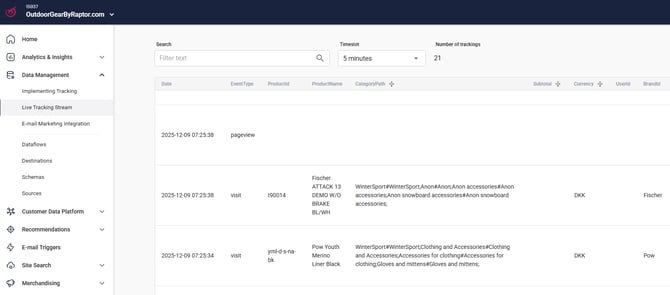
**Validate tracking**:
Use the **Live Tracking Stream** to check and confirm that tracking is working correctly:
**Click Handlers:**
Ensure click handlers are correctly placed. These allow Raptor to detect when a recommendation is clicked. With this in place, you can track direct and assisted revenue, conversion rates, average basket size, and revenue per visit for Raptor users vs. non-Raptor users.
**Tracking and offline shopping behavior (Point of Sale)**
**🔍 Tip:** To accelerate recommendation performance, upload a POS file from a chosen historical period. Ensure **Product IDs** match the IDs being tracked.
[Learn more](https://content.raptorservices.com/help-center/tools/datamanager/orderline-schema?hsLang=en) about how to send Purchase History Data and **POS** Data to Recommendation Engine.
**POS file parameters:**
- Order ID (required)
- Product ID (required)
- Email
- User ID
- Subtotal
- Quantity
- Brand
### Feeds
[Product catalog](https://content.raptorservices.com/help-center/tools/datamanager/product-catalog?hsLang=en)feeds should be set up early in the onboarding process.
- Supported formats: **XML**, **CSV**, or **JSON**
- Feeds typically provide image URLs and prices.
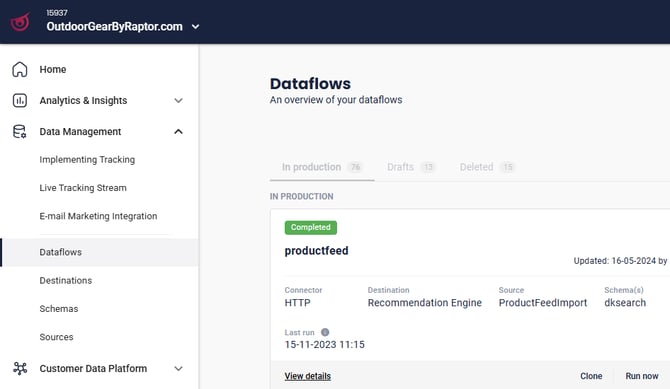
- Set up feeds under **Data Management** **→ Dataflows**
Go to **Data Management** and **Dataflows** to set up the **Product Catalog**.
**🔍 Tip:** If you have uploaded POS data or purchase history, make sure the **Product IDs in your feed match the IDs used in the POS file**. Consistent IDs ensure accurate linking between historical transactions and your product catalog, which improves recommendation quality.
### Layout Design
The **E-mail Layout Designer** under **Recommendations** enables you to customize email templates based on your **Product Feed** without coding or advanced technical skills.
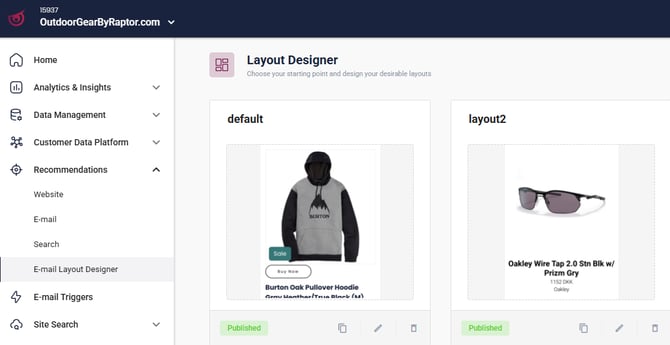
You can:
- Create your own template
- Use one of Raptor’s pre-built templates
**💡** Need a video-tour? Watch our introduction **[HERE](https://content.raptorservices.com/help-center/tools/introduction-to-layout-designer?hsLang=en)**
**How to create a layout:**
- Go to **Recommendations → E-mail Layout Designer**
- Click **Create Layout**
- Choose from:
- **Featured product** – compares prices
- **Horizontal template** – for horizontal product displays
- **Promotional template** – includes a discount label
- - **Blank layout** – design from scratch
**💡Example:** Please read our [Technical Guide](https://content.raptorservices.com/help-center/layout-designer-technical-guide?hsLang=en) if you need further guidance.
### REAID Synchronization
REAID (Raptor Email Address ID) is used when Raptor integrates with your Email Marketing System.
- Enable email address synchronization when the email address is used as a business key.
- Raptor generates an ID and pushes it to all email contacts to anonymize users and prevent email addresses from appearing in URLs.
**Setup:**
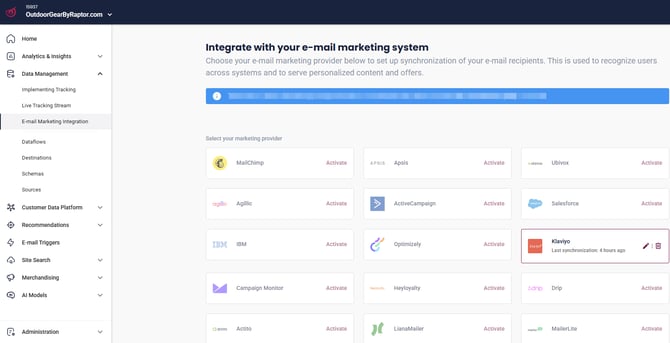
- Go to **Data Management → Email Marketing Integration**
- Choose your email marketing provider
- Click **Activate**
- Enter your **Email Marketing API Key** and **Account ID**
- Follow third-party integration documentation [HERE](https://content.raptorservices.com/help-center/data-management#email-marketing-integration).
**Multi-account setups:**
- If multiple Raptor accounts share one email marketing account, set up integration once.
- If your email marketing system has multiple accounts, set up integration for each Raptor account individually.
**Synchronization frequency:**
- Runs every 24 hours
- First sync occurs ~4 hours after activation
- Some providers allow sync every 4 hours
**Insert REAID in tracking:**
Include REAID as a UTM parameter in all links sent from your email marketing system. See our Help Article [HERE](https://content.raptorservices.com/help-center/reaid-synchronization?hsLang=en).
👀 **Use case:** This is used to recognize users across systems/devices and to serve personalized recommendations.
### Activating the mail modules
Before activating modules:
- Ensure tracking and email marketing integration are complete.
**Steps:**
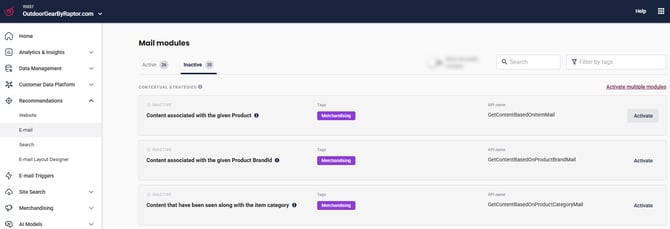
- Go to **Raptor Control Panel → Recommendations → E-mail**
- Activate the required modules from the inactive panel
### Creating the modules in your e-mail provider
After activation:
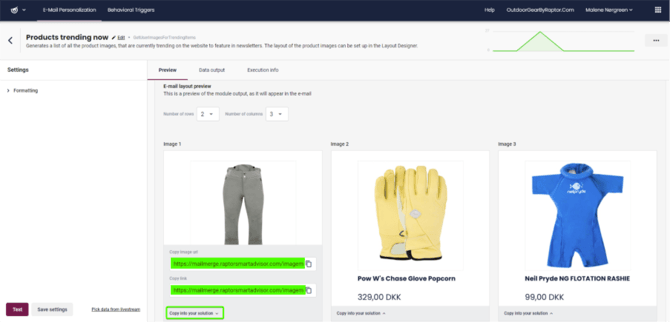
- Select the first module and click **Test** to generate output
⚠️ **Warning:** When testing a module, make sure you enter the plain (unencrypted) value in the **UserId** field. If you enter an encrypted value, the test will not return results. Use the raw user ID exactly as it is stored in your system.
- Copy the **Image URL** from the preview and insert it into your email template’s image placeholder
- Copy the **Link URL** and insert it into the link address for the same placeholder
- **Repeat for each product image you want to display:**
- Continue with Image 2, Image 3, and so on until you reach the desired number of products.
- **Important:** Update the number in the URL for each image (e.g., `.../1.jpg`, `.../2.jpg`, `.../3.jpg`).
- Reusing the same URL will display identical recommendations, so each image must have a unique URL.
**Example URL structure:**
- Image URL:
```
https://mailmerge.raptorsmartadvisor.com/imagemerge/0/25/15937/dk/1.jpg?rsaOutputType=FullInfo&rsaMailmergeTemplateName=default&rsaMailmergeApiMethod=GetUserImagesForTrendingItems&rsaMailId=YourCampaignId&reaid=&rsaUserId=
```
- Product URL
```
https://mailmerge.raptorsmartadvisor.com/imagemerge/1/25/15937/dk/1.jpg?rsaOutputType=FullInfo&rsaMailmergeTemplateName=default&rsaMailmergeApiMethod=GetUserImagesForTrendingItems&rsaMailId=YourCampaignId&reaid=&rsaUserId=
```
**Want to understand how the URL is structured?**
This step-by-step guide explains each element of the URL in detail.
This guide in [Arcade](https://app.arcade.software/share/RCfOa4tI45ecj3sPGMulcan) will help you:
- Understand what each parameter in the URL means
- Learn how the REAID and other dynamic elements work
- See examples of how the URL changes for different images
### 🗯️FAQ
**Q: How are images generated for email recommendations?**
Images for item recommendations are generated dynamically when the email is sent. This ensures that the most up-to-date layout and product data are used. If you make changes in the Layout Designer, the new design will only appear in emails after the image is called again by the email system.
**Q: How does caching work in the email modules?**
The email modules include a built-in cache, which is **not enabled by default**. Additionally, the image proxy has its own cache, which resets every night at 02:00.
- **Testing:** Always test personalization features in the Raptor Control Panel, where a ForceReloadAlgorithmCache ensures previews are up-to-date.
- **Email marketing systems:** Caching is not automatically refreshed in external email systems or via the URLs used in email modules. This means changes in layout or recommendations may not appear immediately in sent emails unless the image is re-requested.
**Q: What is “backfilling” and can I configure it myself?**
Backfilling refers to adding fallback products to the end of the recommendation list when personalized recommendations aren’t available.
- **Configuration:** Backfilling is defined within each module and cannot be changed dynamically, as the data sources need to be “warmed up” with new backfilling data. You can typically choose to enable or disable backfilling, but not customize its content.
**Q: What is a “candidate set” in the context of recommendations?**
The candidate set is the pool of items from which recommendations are selected.
- In Merchandising modules, this is typically a dynamic, behavior-based list (often 50 products) tailored to the user’s activity.
- Boosting actions (e.g., promoting certain items) can only be applied within this candidate set.
- The logic for how the candidate set is defined—including data sources, filters, and attributes—is determined by the module’s configuration.
**Q: What does “FullInfo” mean in API responses?**
When a module is set to return “FullInfo,” all mapped parameters from the item Schema are included in the API output. This enriches the recommendation data with additional item attributes.
**Q: What’s the difference between OData filters and product filters?**
- **Product filter:** A simple, comma-separated list of item IDs to exclude from recommendations.
- **OData filter:** A more advanced and flexible query language that allows you to filter recommendations based on any mapped parameter from the Item Schema—not just product IDs.
Use OData filters to remove groups of products from the output, applying complex logic across all available product attributes. While OData filters are powerful, they can be more complex to set up, so a simpler product filter is also available for straightforward exclusions.
- [Welcome to Raptor](https://content.raptorservices.com/help-center/welcome-to-raptor?hsLang=en#main-content)
- [Introduction](https://content.raptorservices.com/help-center/welcome-to-raptor?hsLang=en#introduction)
- [Analytics & Insights](https://content.raptorservices.com/help-center/analytics-insights?hsLang=en)
- [Data Management](https://content.raptorservices.com/help-center/data-management?hsLang=en#main-content)
- [Implementing Tracking](https://content.raptorservices.com/help-center/data-management?hsLang=en#implementing-tracking)
- [Implementing Raptor Recommendation](https://content.raptorservices.com/help-center/data-management?hsLang=en#implementing-raptor-recommendation)
- [Email Marketing Integration](https://content.raptorservices.com/help-center/data-management?hsLang=en#email-marketing-integration)
- [The Data Manager](https://content.raptorservices.com/help-center/data-management?hsLang=en#the-data-manager)
- [Streaming API](https://content.raptorservices.com/help-center/data-management?hsLang=en#streaming-api)
- [Destinations](https://content.raptorservices.com/help-center/data-management?hsLang=en#destinations)
- [Customer Data Platform](https://content.raptorservices.com/help-center/customer-data-platform?hsLang=en#main-content)
- [Introduction](https://content.raptorservices.com/help-center/customer-data-platform?hsLang=en#introduction)
- [Profile Unification](https://content.raptorservices.com/help-center/customer-data-platform?hsLang=en#profile-unification)
- [Audience Builder](https://content.raptorservices.com/help-center/customer-data-platform?hsLang=en#audience-builder)
- [Audience Insights](https://content.raptorservices.com/help-center/customer-data-platform?hsLang=en#audience-insights)
- [Calculated Attributes](https://content.raptorservices.com/help-center/customer-data-platform?hsLang=en#calculated-attributes)
- [Activations](https://content.raptorservices.com/help-center/customer-data-platform?hsLang=en#activations)
- [Single Customer View](https://content.raptorservices.com/help-center/customer-data-platform?hsLang=en#single-customer-view)
- [CDP Export API](https://content.raptorservices.com/help-center/customer-data-platform?hsLang=en#cdp-export-api)
- [Website Recommendations](https://content.raptorservices.com/help-center/website-recommendations?hsLang=en#main-content)
- [Introduction](https://content.raptorservices.com/help-center/website-recommendations?hsLang=en#introduction)
- [Recommendation Strategies](https://content.raptorservices.com/help-center/website-recommendations?hsLang=en#recommendation-strategies)
- [Feeds](https://content.raptorservices.com/help-center/website-recommendations?hsLang=en#feeds)
- [Tuning Parameters](https://content.raptorservices.com/help-center/website-recommendations?hsLang=en#tuning-parameters)
- [Working with the Raptor API](https://content.raptorservices.com/help-center/website-recommendations?hsLang=en#working-with-the-raptor-api)
- [Mail Recommendations](https://content.raptorservices.com/help-center/mail-recommendations?hsLang=en)
- [E-mail Triggers](https://content.raptorservices.com/help-center/e-mail-triggers?hsLang=en#main-content)
- [Get started](https://content.raptorservices.com/help-center/e-mail-triggers?hsLang=en#get-started)
- [E-mail Trigger Documentation](https://content.raptorservices.com/help-center/e-mail-triggers?hsLang=en#e-mail-trigger-documentation)
- [E-mail trigger integrations](https://content.raptorservices.com/help-center/e-mail-triggers?hsLang=en#e-mail-trigger-integrations)
- [Site Search](https://content.raptorservices.com/help-center/site-search?hsLang=en#main-content)
- [Search Tracking](https://content.raptorservices.com/help-center/site-search?hsLang=en#search-tracking)
- [Introduction](https://content.raptorservices.com/help-center/site-search?hsLang=en#introduction)
- [Implementing Site Search](https://content.raptorservices.com/help-center/site-search?hsLang=en#implementing-site-search)
- [Search Ranking & Recommendations](https://content.raptorservices.com/help-center/site-search?hsLang=en#search-ranking-recommendations)
- [Reporting](https://content.raptorservices.com/help-center/site-search?hsLang=en#reporting)
- [Merchandising](https://content.raptorservices.com/help-center/merchandising?hsLang=en#main-content)
- [Introduction to Merchandising](https://content.raptorservices.com/help-center/merchandising?hsLang=en#introduction-to-merchandising)
- [Boosted Campaigns](https://content.raptorservices.com/help-center/merchandising?hsLang=en#boosted-campaigns)
- [Customized Feeds](https://content.raptorservices.com/help-center/merchandising?hsLang=en#customized-feeds)
- [AI Models](https://content.raptorservices.com/help-center/ai-models?hsLang=en#main-content)
- [Customer Lifetime Value](https://content.raptorservices.com/help-center/ai-models?hsLang=en#customer-lifetime-value)
- [Administration](https://content.raptorservices.com/help-center/administration?hsLang=en#main-content)
- [Trust Center](https://content.raptorservices.com/help-center/administration?hsLang=en#trust-center)
- [User Management](https://content.raptorservices.com/help-center/administration?hsLang=en#user-management)
- [Operational Insights](https://content.raptorservices.com/help-center/administration?hsLang=en#operational-insights)
- [Data Retention](https://content.raptorservices.com/help-center/administration?hsLang=en#data-retention)
[](https://www.raptorservices.com/)
raptorsmartadvisor.com Help Center
Copyright © 2026, Raptor Services A/S